Live Networks
Stationeers Toolkit's Live Networks view connects VS Code to a running Stationeers game through the optional local Stationeers Toolkit mod. It lets you discover remote networks and IC housings, inspect the programs attached to them, and work with live IC10 source without leaving the editor.
The feature is useful without StationeersLua. StationeersLua is only needed for the separate Lua source service and the Lua-specific access rules described near the end of this guide.
Connect to a game
- Start Stationeers with the Stationeers Toolkit mod installed.
- Open the Live Networks view from the Stationeers activity bar.
- Use the connect or pair action if the view is not already connected.
- Expand a remote network to see its discovered chips and housings.
The view shows the connected world in both the panel and the VS Code status bar. Use Stationeers: Refresh Live Networks after changing the in-game selection or network, and use Stationeers: Filter Live Networks to search by network, housing, prefab, language, or reference.
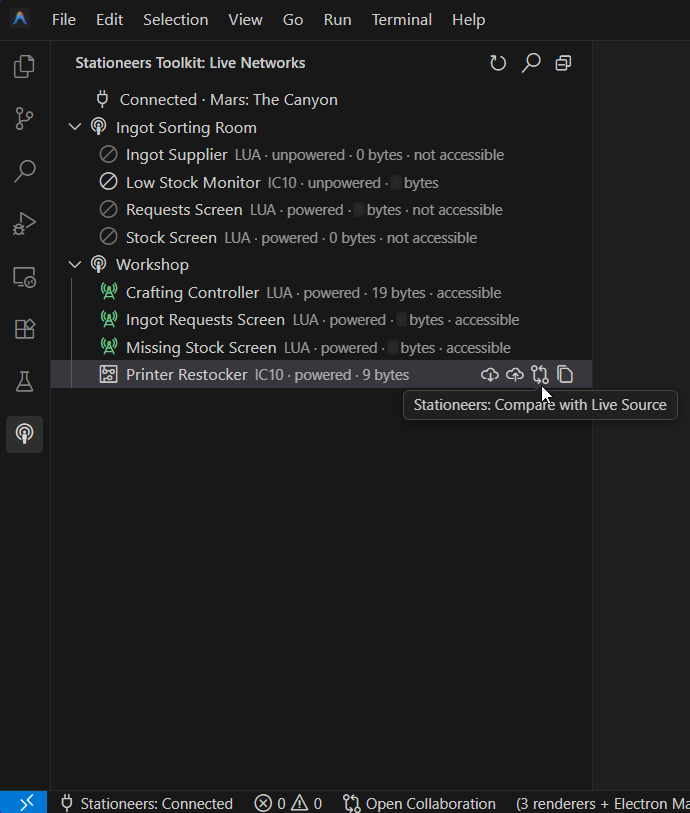
Each network is shown as a separate scope. Expand it to see the chips that the bridge discovered there. Chip descriptions identify the housing, language, power state, source size, and whether the current integration can access live source.
Work with live IC10 source
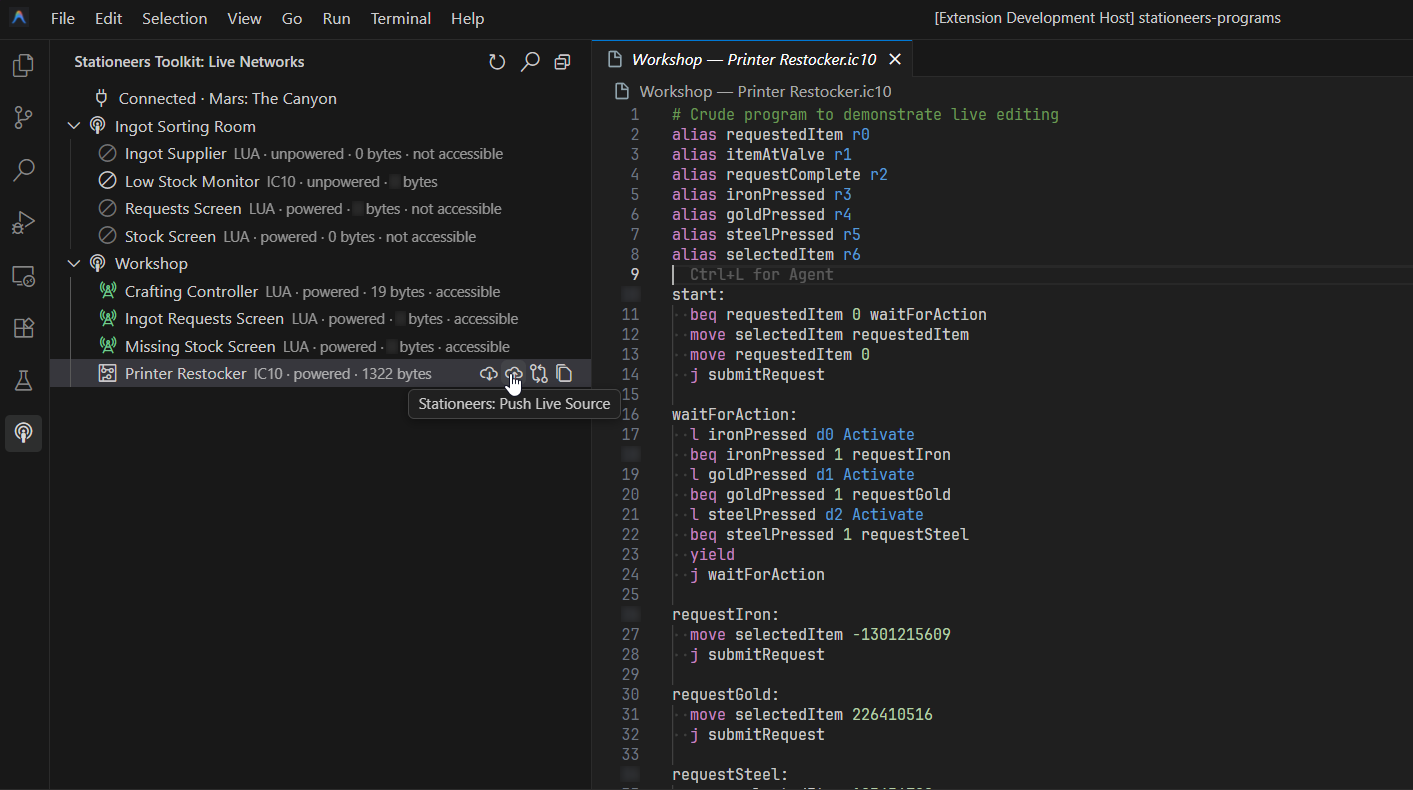
Select an IC10 chip and open it from the Live Networks tree. The source opens in a live editor tab rather than as a normal workspace file. From the chip's actions you can pull the current source, compare it with the open live source, and push an edited version back to the game where the bridge permits it.
Treat a live source tab as a view of the game, not as a source-controlled workspace file. Pull it into a normal file when you want to keep a version in the project or review it in source control.
Availability and connection loss
Discovery and source access are separate. A chip can remain visible in the network tree while its live source is unavailable because it is unpowered, out of range, or outside the active integration scope. The tree keeps those states visible instead of hiding the discovered chip.
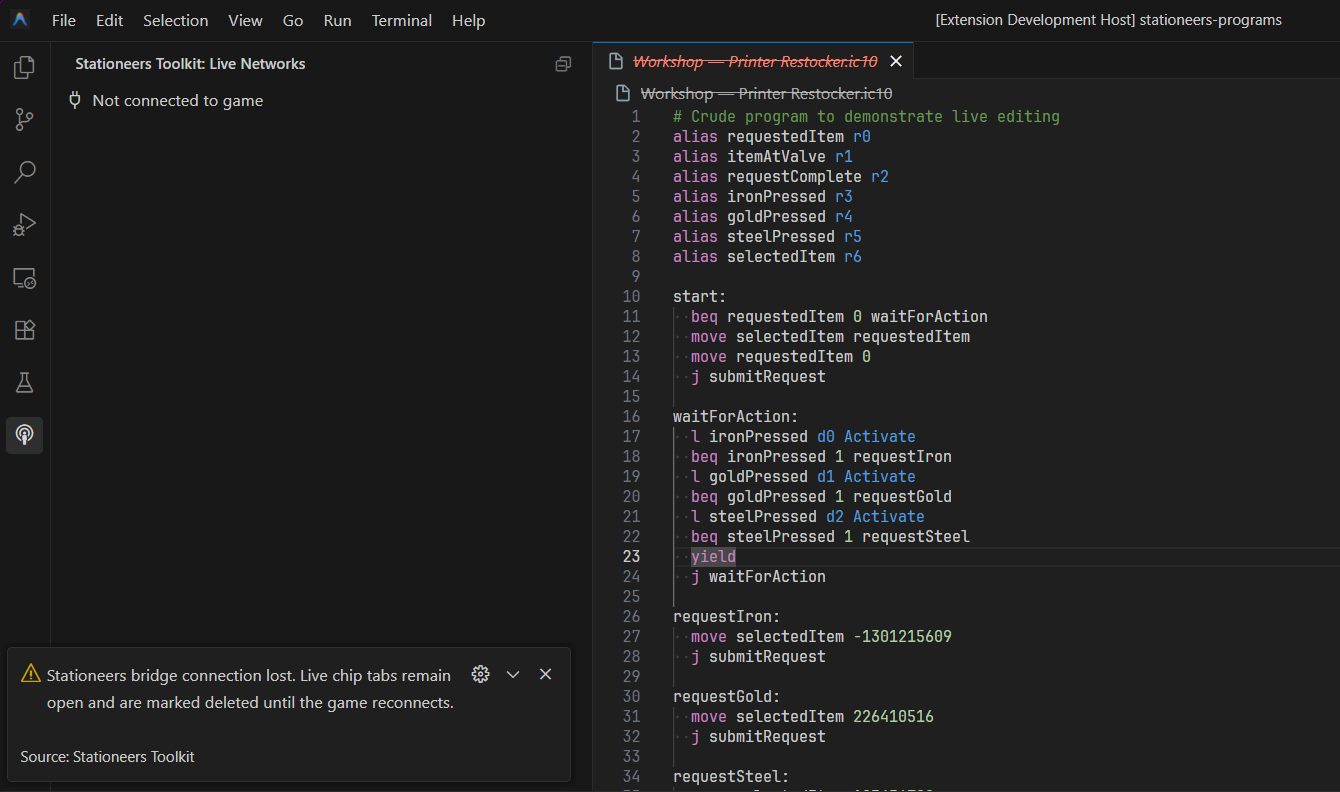
If the game closes or the bridge connection is lost, an already-open live source tab remains available for reference but is marked unavailable. It can be used again after the game reconnects and the live network is refreshed.
Local-only integration
The bridge uses a loopback endpoint and does not send source code or Stationeers data to an external service. Live discovery is intentionally local: SSH, WSL, containers, and Codespaces need an explicitly forwarded local bridge port, and the extension does not probe a remote host automatically.
The default bridge endpoint is:
text
http://127.0.0.1:3032Configure it with stationeers.bridge.url when the local bridge uses a different port. Pairing tokens are stored in VS Code SecretStorage.
Optional StationeersLua integration
StationeersLua can be installed alongside Toolkit when the world contains Lua chips. Toolkit continues to own the Live Networks view and IC10 bridge, while StationeersLua supplies a separate Lua source service. Lua source access also depends on the exact chip and housing being selected in an in-game editor or the Wireless Development Board being connected to that network.
Do not use both extensions' live network, chip editor, or source synchronisation tools against the same game session at the same time. Choose one extension as the live owner; for projects using Toolkit simulation, topology, testing, or debugging, Toolkit is the recommended owner. See StationeersLua integration for the coexistence and Lua-specific configuration notes.